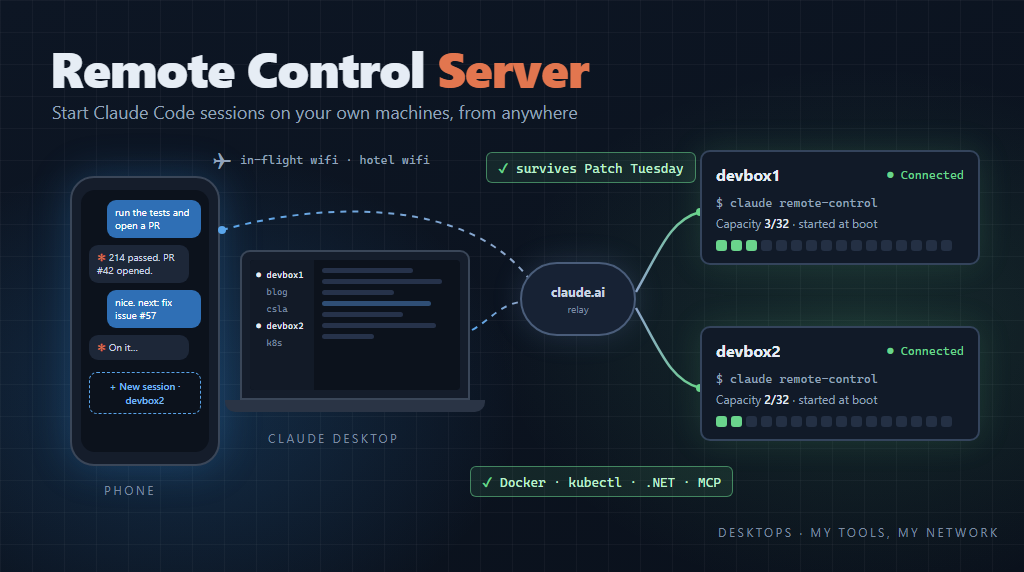
⚠️ Update: I no longer recommend the “Do not store password” (S4U) option for the scheduled task described below. I’m now convinced it caused the Windows sign-in problems I describe later in this post. See Fixing My Remote Control Server Sign-in Problems for the fix, which is to run the task with a stored password.
In my last post I talked about using SSH to run Claude Code on one of my desktop machines while I’m traveling with my laptop. It works, but it has problems. The biggest one is that disconnecting kills Claude, and on bad airplane or hotel wifi, disconnecting happens a lot.
At the end of that post I said I’d write about Claude Code’s Remote Control feature, and then about running a Remote Control server. It turns out the first part is pretty short, so this post covers both.
Remote Control with /rc
Remote Control lets you start Claude Code on one machine and interact with that same session from somewhere else: the Claude mobile app, the Claude desktop app, or a browser at claude.ai/code. In a running Claude Code session you just type /rc (short for /remote-control), and the session shows up on your other devices.
This solves the biggest SSH problem. The session is running on the desktop machine, not inside an SSH connection, so if my laptop goes to sleep or the wifi drops, nothing happens to Claude. It keeps working, and when I reconnect I see whatever it did while I was gone.
I was happily using /rc for a while. I’d start a few sessions on devbox1 before leaving the office, run /rc in each one, and then work with them from wherever I happened to be.
Then Patch Tuesday came around.
Windows Update rebooted the machine overnight, and every one of those sessions went away. They were running in terminal windows on the desktop, and when the machine rebooted, the terminal windows were gone and so were the sessions. From my hotel room there was no way to start new ones, because /rc only works on a session that is already running. To start a session in the first place, someone has to be at the machine (or connected to it with SSH or a remote desktop tool) to run claude.
Remote Control Server
That’s when I discovered that Claude Code can also run as a Remote Control server:
claude remote-control
Instead of exposing one existing session, this runs a long-lived server process that my other devices can ask to create new sessions. From my phone or from the Claude desktop app, I pick the machine and start a session, and the server spawns a new Claude Code session in the directory where the server is running. By default a server allows up to 32 concurrent sessions.
This changes things a lot. The desktop machine is no longer something I need to set up before I leave. As long as the server is running, I can start whatever work I need, whenever I need it, from wherever I am.
Running It Without Logging In
For this to survive Patch Tuesday, the server has to start when the machine boots, without anyone logging in. You might expect that to mean a Windows service, but it doesn’t. A Windows scheduled task can do it, and that’s what I use.
There are two one-time steps to do first, while you’re logged into the desktop:
- Log into Claude Code. The server uses the login stored in your user profile.
- Run
claudeonce in the directory where the server will run (for me that’sS:\src) and accept the workspace trust prompt. The server can’t show you that prompt later, because there is nobody to show it to.
Then create the scheduled task. The important settings are:
⚠️ Don’t use the S4U option below. It is what I believe caused my sign-in problems. Use a stored password instead, as described in my follow-up post.
- Run whether user is logged on or not, with Do not store password checked. Behind the scenes this is an “S4U” logon type. The task runs as you, but in a background logon with no desktop, and without Windows having to store your password.
- A startup trigger with a one minute delay, so the server starts after every reboot.
- A second trigger that repeats every 15 minutes, which acts as a self-heal if the script ever stops running.
- If the task is already running, do not start a new instance, and no time limit on how long the task can run. My script keeps running for as long as the server does (more on that below), so these settings matter.
Here’s the PowerShell to create that task. Run it from an elevated prompt, and adjust the path to wherever you put the script:
$script = "$env:USERPROFILE\.local\bin\start-claude-remote-control.ps1"

$action = New-ScheduledTaskAction -Execute 'pwsh.exe' `
    -Argument "-NoProfile -NonInteractive -ExecutionPolicy Bypass -File `"$script`""

$boot = New-ScheduledTaskTrigger -AtStartup
$boot.Delay = 'PT1M'
$heal = New-ScheduledTaskTrigger -Once -At (Get-Date) -RepetitionInterval (New-TimeSpan -Minutes 15)

$principal = New-ScheduledTaskPrincipal -UserId $env:USERNAME -LogonType S4U -RunLevel Limited

$settings = New-ScheduledTaskSettingsSet -MultipleInstances IgnoreNew `
    -ExecutionTimeLimit ([TimeSpan]::Zero) -StartWhenAvailable -RunOnlyIfNetworkAvailable `
    -AllowStartIfOnBatteries -DontStopIfGoingOnBatteries `
    -RestartCount 3 -RestartInterval (New-TimeSpan -Minutes 5)

Register-ScheduledTask -TaskName 'Claude Code Remote Control' `
    -Action $action -Trigger $boot, $heal -Principal $principal -Settings $settings
⚠️ A background S4U logon can’t use Windows Credential Manager. That’s the same “nobody is logged in” problem I ran into with SSH. Claude Code itself was fine for me, but any tool that keeps its secrets in the credential store will have trouble.
With that in place, Patch Tuesday can reboot the machine all it wants, and a minute or so later the server is back and ready for new sessions.
ℹ️ If you stop the server and start it again in the same directory within about four hours, it brings back the sessions it was serving. So a reboot or restart is not the end of the world for work that was in progress.
A Warning About Windows Sign-in
Around the time I set this up, both of my desktop machines got into a bad state. Signing into Windows with my PIN still worked, but after that my other credentials didn’t. My Marimer work account, Google, and other web logins were all signed out, and signing into Microsoft 365 failed with TPM errors. Even when I signed in again, things kept logging me out.
What was actually broken was DPAPI, the part of Windows that encrypts per-user secrets like saved tokens and browser cookies. The keys it uses are unlocked by how you sign into Windows. After a PIN sign-in, Windows couldn’t open my existing keys, so it quietly created new ones, and nothing encrypted with the old keys could be read anymore. Sign-ins to other services appeared to work, but the tokens couldn’t be saved.
Update: I’ve since become convinced that the S4U scheduled task was the cause. Switching the task to a stored password logon fixed it. The details are in my follow-up post.
I can’t prove the scheduled task caused this. My machines sign in with a Microsoft account and have “only allow Windows Hello sign-in” turned on, and on devbox1 a firmware update had re-provisioned the TPM, which can cause this problem on its own. But on devbox2 there was no reboot and no TPM change. The S4U task started for the first time, and the next time I signed in, Windows created new DPAPI keys. That is too close together for me to call it a coincidence.
If this happens to you, here’s what fixed it for me:
- Turn off “only allow Windows Hello sign-in” in Settings > Accounts > Sign-in options.
- Sign out (really sign out, not just lock the screen) and sign back in with your Microsoft account password, not the PIN. The sign-in screen will default to the PIN, so use “Sign-in options” to pick the password. A PIN sign-in does not fix it.
- Remove your PIN and add it again. Use Remove, not “I forgot my PIN”.
- If a work or school account is still broken, remove it and add it again under Settings > Accounts > Access work or school.
- Only then sign back into websites and apps.
That last step matters. The first time I fixed this, I later signed in with my PIN again, and the problem came back. That time Edge couldn’t read its cookie encryption key, so it replaced it with a new one, and every web login I had was gone for good. The PIN has been fine since I removed it and added it again, but don’t sign back into everything until the password sign-in and the PIN reset are done.
This matters even more with this setup, because you’ll often be signing in over a remote desktop connection after a reboot to get things like Docker Desktop started. If you run into this, sign in with your password.
Some SSH Problems Don’t Go Away
The Remote Control server solves the problem of sessions dying, but it doesn’t change the fact that Claude is running on a machine where nobody is logged into the desktop. So a couple of the problems from my SSH post still apply, and the solutions are the same.
After a reboot, Docker Desktop still isn’t running until someone logs in, because it is a per-user app that starts at login. Just like with SSH, my answer is to connect with a GUI remote desktop tool, log in so Docker (and anything else that starts at login) comes up, and then go back to working through Remote Control.
Git and the gh CLI also still need credentials that work without prompting. Nothing can pop up a login dialog or browser for a session started from my phone, any more than it could for an SSH session. Everything I described in the SSH post still applies: SSH keys for GitHub instead of Git Credential Manager, and a gh token that doesn’t depend on the desktop login session.
Phone or Desktop?
I’ve been using both the Claude mobile app and the Claude desktop app (on my laptop) to work with these sessions, and they each have their strengths.
The phone experience is more polished. The UI is clean and just works, and it is really nice to be able to check on a session, answer a question Claude has for me, or kick off a new task from my phone, wherever I am.
The desktop app, on the other hand, gives me a lot more screen real estate. When I’m reviewing what Claude did or having a longer back-and-forth about a design, a bigger screen matters, and the desktop app is nicer to work with for that.
So I tend to use the phone for quick check-ins and the desktop app when I’m actually sitting down to work.
My Environment, Not a Cloud Sandbox
It is worth pointing out how this is different from the cloud sessions you get with Claude Code on the web. Those run in a standard cloud environment that Anthropic provides. That’s fine for many things, but it isn’t my environment.
With the Remote Control server, the sessions run on my desktop machines, with all my tools: Docker, kubectl with access to my Kubernetes cluster, multiple .NET SDKs, my database tools, my MCP servers, and all my repos checked out where they belong. Claude isn’t limited by what a generic cloud environment happens to have installed. It has everything I have.
And I get all of that from my phone or laptop.
The Airplane Test
Over the past couple weeks I’ve been using this setup a lot, including from airplanes during flights and from hotel wifi.
As I discussed in the previous post, Claude Code uses a lot of bandwidth, especially upload bandwidth, because it keeps sending the conversation context to the model. With the Remote Control server, all of that traffic goes over my office internet connection. The only thing going over the airplane wifi is the conversation I’m having with Claude.
The result is that I really don’t worry about bandwidth anymore. Performance is good, and the overall experience is good. Airplane wifi is still airplane wifi, but it is no longer the thing standing between me and getting work done.
It’s been good enough that I set up the server on both of my desktop machines, devbox1 and devbox2. In theory that means I could have 64 sessions going at once! In reality I usually have somewhere between one and five sessions running at any given time, but it is nice to know the capacity is there.
Keeping It Running and Updated
There are two operational details worth knowing if you run a server like this for long periods of time.
First, if the network is down for an extended time (around 10 minutes), the server gives up and exits. So something needs to restart it. My script checks on the server every 5 minutes, and if it isn’t running it starts it again.
Second, Claude Code can update itself in the background (if you used the native installer), but an update doesn’t take effect until Claude Code restarts. A server that runs for weeks will happily keep running an old version the whole time. Don’t count on the download happening on its own either: autoUpdates in ~\.claude.json may be set to false, and a long-running server process doesn’t appear to be a reliable trigger for the built-in updater. The failure is a quiet one, because the box just keeps running the old build until something forces the issue, like a newer model that won’t run on an old version. So my script stages new versions itself, running claude update once an hour and logging what it finds.
I didn’t want to restart the server on a fixed schedule, because I travel across time zones and there isn’t a time of day when I’m reliably not using it. So my startup script now watches for two conditions: a newer version has been staged, and none of the sessions have done anything for an hour. When both are true, it restarts the server, which picks up the new version and brings the existing sessions back.
There were two surprises while building that.
The server’s own status display shows something like Capacity: 1/32, and my first thought was to restart when that says zero. It never does. The server always keeps one pre-created session, and the number counts sessions that exist, not sessions that are doing something. What works better is to look at the session transcripts Claude Code writes under ~\.claude\projects. If none of them have changed in an hour, nobody is using the server.
The other surprise was that the script couldn’t restart a server it hadn’t started itself. Every run of the scheduled task is a separate background logon, and one logon isn’t allowed to stop a process that belongs to another. So instead of starting the server and exiting, the script stays running as a supervisor for as long as the server runs. Because it started the server, it’s allowed to stop it. The “do not start a new instance” setting on the task means the 15-minute trigger does nothing while the supervisor is alive, and starts a new one if it ever dies.
The Script
I’ve put the whole script in a GitHub gist for reference. It assumes Claude Code was installed with the native installer (so claude.exe is in ~\.local\bin and downloaded versions are in ~\.local\share\claude\versions), and it takes parameters for the working directory, idle time, and so on. It logs to ~\.claude\remote-control-boot.log, which is the first place to look if something isn’t working.
ℹ️ The idle check has one blind spot. If Claude is running a single command that takes more than an hour without writing anything to the transcript, the server looks idle and could be restarted in the middle of it. That hasn’t been a problem for me, but if it is for you, raise
-IdleMinutes.
Conclusion
Here’s where I’ve ended up:
/rcis great for making an existing session available from your phone or another computer, and it solves the “disconnecting kills Claude” problem I had with SSH./rccan’t help you if the session is gone, which is exactly what happens when Windows reboots the machine.claude remote-controlruns a server that lets you start new sessions from your phone or the Claude desktop app, so you don’t need to set anything up before you leave.- Start the server when the machine boots, restart it when it exits, and give it a way to pick up updates.
- The “nobody is logged in” problems from SSH still apply. Docker Desktop needs a login, and Git and
ghneed credentials that don’t prompt. - Watch for Windows sign-in trouble after setting up the S4U task. If your other credentials stop working after a PIN sign-in, sign in with your password and reset the PIN before signing back into anything else. (Update: better yet, don’t use S4U at all. Run the task with a stored password, as described in my follow-up post.)
For me, this is the setup I was looking for when I started down this path with SSH. Claude runs on a well-equipped desktop machine with all my tools, and I can start and work with sessions from anywhere, over just about any network connection.
This post was authored with the assistance of AI.