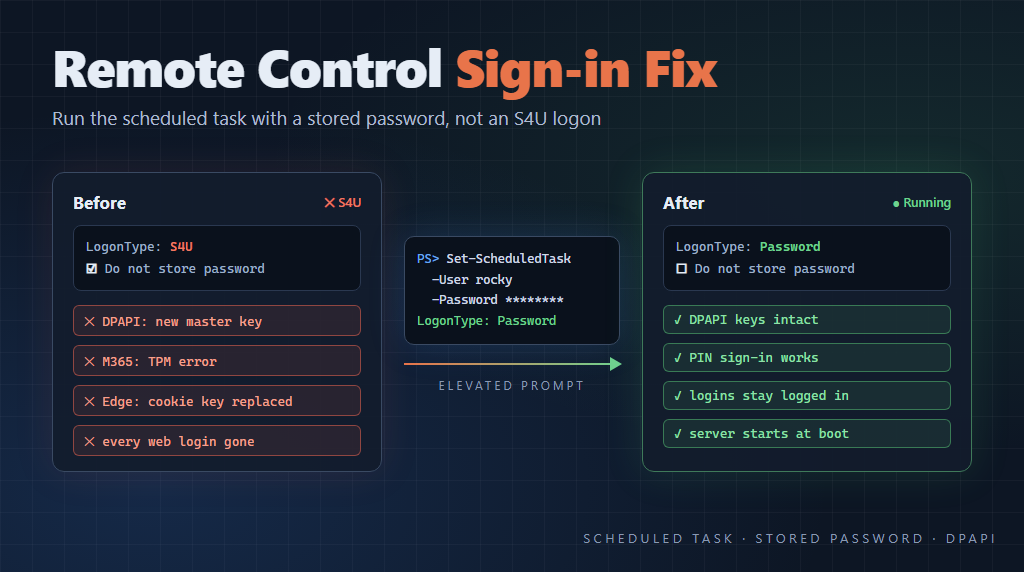
A couple weeks ago I wrote about running a Claude Code Remote Control server on my desktop machines, so it starts at boot and I can create new sessions from my phone or laptop. Near the end of that post I added a warning about Windows sign-in problems: after signing in with my PIN, my other credentials stopped working, Microsoft 365 complained about the TPM, and Edge lost all my web logins.
At the time I said I couldn’t prove the scheduled task caused it. I’m now convinced that it did.
I have been running this one two PCs (I’m calling them devbox1 and devbox2), and on both machines I kept having my credentials fail with DPAPI or TPM errors when trying to refresh the credentials. Not with the Microsoft account I use to log into the PC itself, but with other accounts (work, gmail, etc.) on the PC.
The good news is that the fix is pretty simple, and the server keeps running just as it did before.
What I Think Was Going On
In the original setup the scheduled task ran with the “Do not store password” option, which is an S4U logon. The appeal is that Windows doesn’t have to keep a copy of your password. The task runs as you, in a background logon with no desktop.
The catch is that an S4U logon has no password, and DPAPI (the part of Windows that protects per-user secrets like saved tokens and browser cookies) unlocks your keys using your sign-in credentials. A background logon that is you, but that can’t open your keys, is exactly the kind of thing I’d expect to confuse DPAPI.
And that matches what I saw. On devbox2 the S4U task started for the first time, and the next time I signed in, Windows had created new DPAPI keys. Everything encrypted with the old keys was unreadable.
I’ll be honest that I don’t fully understand the internals here, and Windows Hello, a Microsoft account, and a TPM all add their own layers. I suspect the S4U logon isn’t the only way to get into this state. But it is the piece I control, and since I removed it the problem has gone away.
Use a Stored Password Instead
The fix is to have Task Scheduler run the task with a real logon, using your actual password. In the Task Scheduler UI that means unchecking “Do not store password” and entering your password when it asks. Under the covers the logon type changes from S4U to Password.
Now the background logon has the same credentials as a normal sign-in, so DPAPI can open your existing keys instead of making new ones.
I already had the task set up, so I wrote a small script that switches it over. Run it from an elevated PowerShell prompt:
#Requires -RunAsAdministrator
# Switch the "Claude Code Remote Control" task from S4U to LogonType Password
# (stored credential), so the session gets real DPAPI keys instead of an S4U token.
# Re-run this after any Microsoft account password change, or the task will fail to start.

$taskName = 'Claude Code Remote Control'
$task = Get-ScheduledTask -TaskName $taskName -ErrorAction Stop
$user = "$env:COMPUTERNAME\$env:USERNAME"

$cred = Get-Credential -UserName $user -Message "Password for $user (your Microsoft account password, not the PIN)"
$plain = $cred.GetNetworkCredential().Password

# Setting -User/-Password changes the principal's LogonType to Password.
Set-ScheduledTask -TaskName $taskName -User $user -Password $plain | Out-Null
Remove-Variable plain

Enable-ScheduledTask -TaskName $taskName | Out-Null
Start-ScheduledTask -TaskName $taskName

$p = (Get-ScheduledTask -TaskName $taskName).Principal
"LogonType: $($p.LogonType)  User: $($p.UserId)  State: $((Get-ScheduledTask -TaskName $taskName).State)"
If everything worked, the last line should say LogonType: Password.
Notice that it wants your Microsoft account password, not your PIN. The PIN only works on the machine where you set it up, for the interactive sign-in. Task Scheduler needs the real thing.
If you are setting this up from scratch, you can register the task with a password in the first place. It is the same as the script in my earlier post, except that it passes -User and -Password instead of an S4U principal:
$script = "$env:USERPROFILE\.local\bin\start-claude-remote-control.ps1"
$user = "$env:COMPUTERNAME\$env:USERNAME"
$cred = Get-Credential -UserName $user -Message "Password for $user (not the PIN)"

$action = New-ScheduledTaskAction -Execute 'pwsh.exe' `
    -Argument "-NoProfile -NonInteractive -ExecutionPolicy Bypass -File `"$script`""

$boot = New-ScheduledTaskTrigger -AtStartup
$boot.Delay = 'PT1M'
$heal = New-ScheduledTaskTrigger -Once -At (Get-Date) -RepetitionInterval (New-TimeSpan -Minutes 15)

$settings = New-ScheduledTaskSettingsSet -MultipleInstances IgnoreNew `
    -ExecutionTimeLimit ([TimeSpan]::Zero) -StartWhenAvailable -RunOnlyIfNetworkAvailable `
    -AllowStartIfOnBatteries -DontStopIfGoingOnBatteries `
    -RestartCount 3 -RestartInterval (New-TimeSpan -Minutes 5)

Register-ScheduledTask -TaskName 'Claude Code Remote Control' `
    -Action $action -Trigger $boot, $heal -Settings $settings -RunLevel Limited `
    -User $user -Password $cred.GetNetworkCredential().Password
I keep wanting to call this a Windows service, and functionally that’s what it is. But it is still a scheduled task. The only thing that changed is how it logs on.
The Trade-offs
Sure, this isn’t free.
Windows now has a copy of your password. Task Scheduler stores it encrypted, and it isn’t something a normal user can read, but an administrator on that machine could get at it. For my own desktop machines that’s a trade I’m happy to make. On a shared machine I’d think harder about it.
And when you change your Microsoft account password, the stored one is wrong. The task will just fail to start, quietly, until you run the script again. So if your server mysteriously stops coming back after a reboot, that’s the first thing I’d check.
If You Already Have the Problem
Switching the task to a password logon stops it from happening again. It doesn’t fix a machine that is already in a bad state. For that, the steps from my last post still apply: sign out, sign back in with your password (not the PIN), remove and re-add the PIN, fix any work or school accounts, and only then sign back into websites and apps.
I’d switch the task over first, and then do the cleanup, so the next reboot doesn’t undo it.
I’ve been using this new approach for a few days now, and 🤞 haven’t had any credential issues on either PC.
This post was authored with the assistance of AI.