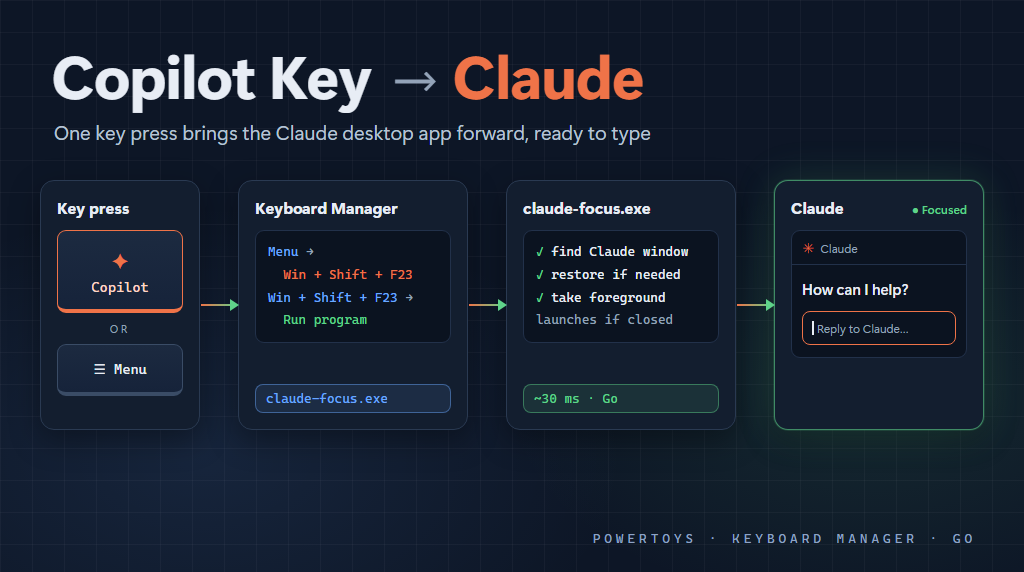
My PC has one of those Copilot keys on the keyboard. I use Claude a lot more than Copilot, so I’ve been wanting that key to open Claude instead.
On my Surface keyboard the Copilot key sits right where the “Menu” key was on previous keyboards. And it is actually both, depending on the Fn key. More on that in a bit.
That sounds like it should be a simple setting. It isn’t, but it is solvable. Where I ended up is that pressing the key brings the Claude desktop app to the front, focused and ready to type, pretty much instantly.
Here’s how I got there, including the dead ends, because they explain why the final setup looks the way it does.
The Windows Setting
Windows 11 does have a setting for this: Settings, Personalization, Text input, “Customize Copilot key on keyboard”. In theory you can pick a custom app there.
In practice, on my machine, the only option in that list is Copilot.
Dead end.
PowerToys Keyboard Manager
So I turned to PowerToys and its Keyboard Manager, which can remap keys and shortcuts, and can also map a shortcut to “Run program”.
The first thing I learned is that the Fn key switches that one physical key between Copilot and Menu. As Copilot it sends Win + Shift + F23, which is the shortcut Windows listens for to launch Copilot. As Menu it is just the old Menu key.
And I keep Fn lock on as a general rule, so the function keys work as normal function keys. That flips this key too. So when I press it by itself I get Menu, and Fn + the key gives me Copilot.
For a while I thought my Copilot key really was just a Menu key with a new picture on it, because that’s all I ever saw it send. I only sorted it out after the rest of this was working, when I noticed that Fn + the key really does launch Copilot.
I want the key to open Claude whichever way the Fn key is set, so there are two different key presses to deal with.
Keyboard Manager won’t let a single keypress launch an app, only a shortcut. Copilot is the easy one, because Win + Shift + F23 is already a shortcut, so it can run a program directly.
Menu is a single key, so I just remap it (when pressed alone) to Win + Shift + F23. In other words, I turn Menu into Copilot. Now both modes of the key end up as the same shortcut, and that one shortcut runs whatever I want.
Keyboards differ here, and so does how Fn lock affects things. Let the Keyboard Manager editor capture the key rather than typing what you think it sends.
Now, what program to run?
Some Things That Didn’t Work
My first try was a test, mapping the shortcut to explorer.exe, just to see if the remap worked at all. Nothing happened.
It turns out the remap was working. Keyboard Manager writes a log (under %LOCALAPPDATA%\Microsoft\PowerToys\Keyboard Manager\Engine\Logs), and the log showed it firing every time. The catch is the “If running” option, which defaults to “Show window”. Explorer is always running, because it is the Windows shell, so Keyboard Manager dutifully “showed” the desktop. Which was already showing. So, a bad choice for a test.
Next I tried notepad.exe. Still nothing. The log showed why: Keyboard Manager looks for a bare program name in its own install folder, not on your path. You need the full path to the exe. Once I gave it that, Notepad opened.
So then I pointed it at Claude. Claude is installed as a Store-style app, and Windows puts a little launcher for it at %LOCALAPPDATA%\Microsoft\WindowsApps\claude-desktop.exe.
That worked, sort of. If Claude wasn’t running it started up just fine. But if Claude was already running, it activated behind whatever window I was in. Not very useful when the whole point is to start typing.
The reason is that the launcher hands off to the already-running copy of Claude, and Windows doesn’t let a background app grab the foreground on its own (which is generally a good thing, nobody likes windows stealing focus). The app I launched had permission to take focus, but it isn’t the app that ends up showing the window.
A Small Utility
What I needed was something that runs when I press the key, finds the Claude window, and brings it to the front itself. If Claude isn’t open, it should start it and then bring it to the front.
My first version was a PowerShell script, and it worked. But there was a noticeable lag, about a second, almost all of it PowerShell starting up. Every time I pressed the key. Yuck.
So I turned it into a small Go program called claude-focus, and added it to my claude-utils repo, which is already a set of Go tools I use with Claude.
(I briefly thought about writing it in C# with native AOT to get fast startup, but Go already compiles to native code, and the rest of that repo is Go, so it was an easy choice.)
It runs in about 30 milliseconds. The key press feels instant now.
A couple details that might be interesting:
- It looks for a visible top-level window that belongs to a
claude.exeprocess. Claude Code (the CLI) is alsoclaude.exe, but it never owns a window of its own (the terminal does), so it doesn’t get confused with the desktop app. - To be allowed to take the foreground, it uses an old trick of sending a synthetic Alt key press first. That counts as input from the program, and Windows then lets it bring Claude forward.
- It is built as a Windows GUI app, so it never flashes a console window.
Putting It Together
In Keyboard Manager the final setup is:
- Remap the Menu key (alone) to Win + Shift + F23.
- Remap Win + Shift + F23 to Run program, with the full path to
claude-focus.exeand no arguments.
I originally routed everything through a Left Shift + Menu shortcut instead, and remapped Copilot to that. Nope. Keyboard Manager ignores the keys it sends itself, so one shortcut remap can’t trigger another. Worse, it still swallowed the Copilot keys, so in Copilot mode the key did nothing at all. A single key remap feeding a shortcut remap is fine though, which is why turning Menu into Copilot works.
That’s it. PowerToys does need to be running. If you close it, the key goes back to being plain old Menu or Copilot, depending on the Fn key.
The code and setup docs are in the claude-utils repo, see docs/claude-focus.md. claude-focus.exe is in the Windows downloads for the v0.2.0 release, so you don’t need to build it yourself.
I have nothing against Copilot and I do use it sometimes. But I use Claude all the time, and having this “special” AI key run Claude makes it more useful to me.
This post was authored with the assistance of AI.